How to Embed YouTube Shorts on Your Website
To embed YouTube Shorts on your website, take the video ID from the Shorts URL and place it inside a standard YouTube embed iframe (https://www.youtube.com/embed/VIDEO_ID). Then, style the iframe container with a 9:16 vertical aspect ratio using CSS so your video displays properly on both mobile and desktop screens without unwanted black bars.
While YouTube makes it simple to embed standard horizontal videos, the platform does not always make the vertical embed code obvious for Shorts. Following this guide will help you embed YouTube Shorts cleanly into WordPress, Webflow, Shopify, or plain HTML.
Why YouTube Shorts Need Special Embed Formatting
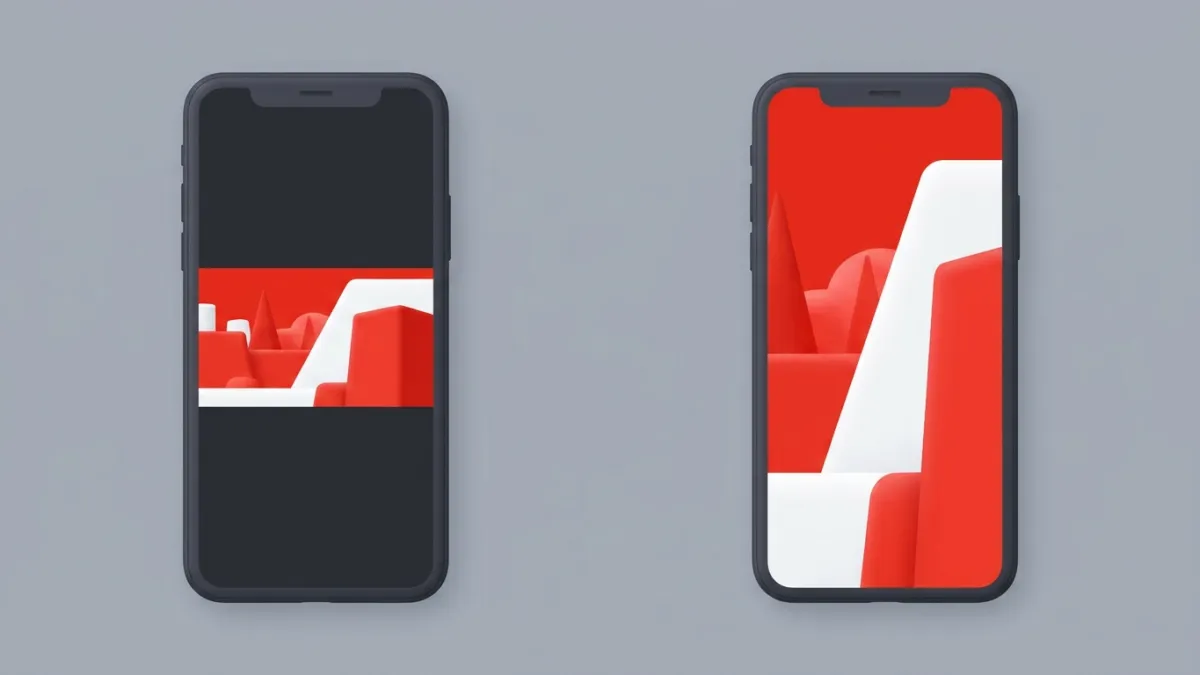
A regular YouTube video uses a widescreen 16:9 aspect ratio. If you drop a YouTube Short into a standard video player container, the browser forces a tall vertical video into a wide horizontal box. This creates thick black pillarboxes on both sides of the video, shrinking your content down until it is barely watchable on desktop monitors.
Furthermore, the URL structure for a Short looks like this:
https://www.youtube.com/shorts/dQw4w9WgXcQ
Web browsers cannot load the /shorts/ URL directly inside an HTML iframe. If you try to paste that raw link into an src attribute, the embed will show an error or refuse to connect. To make it work, you must convert the link into an embed URL format (/embed/dQw4w9WgXcQ) and constrain the container dimensions to match vertical smartphone video.
Step-by-Step: How to Embed YouTube Shorts
Embedding a Short takes three quick steps: locating the ID, converting the URL, and placing it into an HTML iframe.
Step 1: Copy the Video ID
Look at the address bar while viewing your Short on YouTube. The video ID is the string of 11 letters, numbers, and dashes directly after /shorts/.
For example, in the URL youtube.com/shorts/AbCdEf12345, the ID is AbCdEf12345. If you are working on a phone or have a messy tracking link, you can paste your link into our YouTube Video ID Finder & Link Converter to grab the clean ID automatically.
Step 2: Build the Iframe Code
Take the clean 11-character ID and insert it into this basic HTML iframe template:
<iframe
  width="315"
  height="560"
  src="https://www.youtube.com/embed/AbCdEf12345"
  title="YouTube Short player"
  frameborder="0"
  allow="accelerometer; autoplay; clipboard-write; encrypted-media; gyroscope; picture-in-picture; web-share"
  allowfullscreen>
</iframe>
This simple snippet works well in sidebars or blog footers where fixed pixel widths (like 315px wide by 560px tall) fit comfortably.
Step 3: Test the Embed
Paste the code into your page's HTML editor. The video will now play within the native YouTube player interface while maintaining its vertical format.
How to Make a YouTube Short Embed Fully Responsive
Fixed dimensions (like width="315") work in specific layouts, but they fail on smaller mobile screens and fluid grid designs. To ensure your Short looks sharp on every screen size, wrap your iframe in a responsive container with CSS.
Modern CSS allows you to use the aspect-ratio property, which handles vertical video with minimal code:
<div class="shorts-container">
  <iframe
    src="https://www.youtube.com/embed/AbCdEf12345"
    title="YouTube Short player"
    allow="accelerometer; autoplay; clipboard-write; encrypted-media; gyroscope; picture-in-picture; web-share"
    allowfullscreen>
  </iframe>
</div>
Pair that HTML with the following CSS:
.shorts-container {
  width: 100%;
  max-width: 360px; /* Keeps the player phone-sized on large monitors */
  margin: 0 auto;   /* Centers the video on the page */
  aspect-ratio: 9 / 16;
}

.shorts-container iframe {
  width: 100%;
  height: 100%;
  border: none;
  border-radius: 12px; /* Optional: gives modern rounded corners */
}
Setting max-width: 360px prevents the vertical video from blowing up to 1,000 pixels high on a desktop display. If you manage an older website where older mobile browsers might not support modern CSS aspect ratios, you can use the traditional padding-bottom trick detailed in our guide on how to make a YouTube embed responsive on mobile.
Comparing Standard Embeds vs. Shorts Embeds
Here is a quick look at how embedding vertical Shorts differs from embedding horizontal YouTube videos:
| Feature | Standard YouTube Video | YouTube Short |
|---|---|---|
| Aspect Ratio | 16:9 (Horizontal) | 9:16 (Vertical) |
| Ideal Max Width | 720px - 1080px | 340px - 400px |
| Raw URL Path | /watch?v=VIDEO_ID | /shorts/VIDEO_ID |
| Embed URL Path | /embed/VIDEO_ID | /embed/VIDEO_ID |
| Common Use | Full-width tutorials, long reviews | Product demos, quick tips, testimonials |
Customizing Your Embedded Short
You can tweak your embedded Short by appending URL parameters to the src attribute. Use an ampersand (&) to chain multiple parameters after the video ID.
1. Loop the Short Continuously
Shorts are designed to loop naturally on the YouTube mobile app. To recreate that continuous playback behavior on your site, add loop=1 and set playlist=VIDEO_ID to the same ID:
<iframe
  src="https://www.youtube.com/embed/AbCdEf12345?loop=1&playlist=AbCdEf12345"
  title="Looping YouTube Short">
</iframe>
For more advanced looping methods, check out our full tutorial on how to loop a YouTube video.
2. Improve Page Loading Speed
Every YouTube embed loads extra scripts and assets. If you place three or four Shorts on a single landing page, your website speed could drop significantly.
Add loading="lazy" directly to the iframe tag. This tells the visitor's browser to pause loading the player until the user actually scrolls down to the video:
<iframe
  loading="lazy"
  src="https://www.youtube.com/embed/AbCdEf12345"
  title="Lazy Loaded YouTube Short">
</iframe>
Generate Your Embed Code in Seconds
If you do not want to write HTML or calculate aspect ratios by hand, paste your video link into our free YouTube Embed Code Generator. You can choose custom 9:16 dimensions, enable lazy loading, toggle player controls, and generate clean, copy-paste code with one click.
Frequently asked questions
Can you embed a YouTube Short using the desktop share button?
Yes. If you right-click the video on desktop, select 'Copy embed code.' However, YouTube's default embed snippet frequently defaults to 16:9 dimensions, which creates black bars unless you adjust the CSS to 9:16.
Why is my embedded YouTube Short showing an error?
An embed error usually happens when you use the raw `youtube.com/shorts/VIDEO_ID` URL inside the iframe `src`. Replace `/shorts/` with `/embed/` in the URL to allow the video to load properly.
Can I autoplay an embedded YouTube Short?
Yes, you can autoplay a Short by adding `?autoplay=1&mute=1` to the embed link. Modern browsers require the video to be muted for autoplay to work.
What is the best width for an embedded Short on desktop?
A width between 315px and 360px is ideal. This matches modern smartphone proportions and stops the vertical video from taking up too much vertical screen space on laptops.